Posted on

การใช้งานจอ LCD 1602 แบบ i2c กับ Arduino

เริ่มต้นด้วยการหา address ของจอ LCD  โดยส่วนมากแล้วจอ LCD แบบ I2C จะใช้ IC PCF8574T เป็น อินเตอร์เฟส  I2C-bus 100 kHz (โหมด I2C บัส มาตรฐาน)

ซึ่งมักจะเป็น Address 0x27  แต่หากเราไม่ทราบ address จริงๆ สามารถใช้ i2c_scanner สแกนขา Address ได้ดัง Code ด้านล่าง

Arduino Playground – I2cScanner

https://playground.arduino.cc/Main/I2cScanner

 // --------------------------------------
// i2c_scanner
//
// Version 1
//    This program (or code that looks like it)
//    can be found in many places.
//    For example on the Arduino.cc forum.
//    The original author is not know.
// Version 2, Juni 2012, Using Arduino 1.0.1
//     Adapted to be as simple as possible by Arduino.cc user Krodal
// Version 3, Feb 26  2013
//    V3 by louarnold
// Version 4, March 3, 2013, Using Arduino 1.0.3
//    by Arduino.cc user Krodal.
//    Changes by louarnold removed.
//    Scanning addresses changed from 0...127 to 1...119,
//    according to the i2c scanner by Nick Gammon
//    http://www.gammon.com.au/forum/?id=10896
// Version 5, March 28, 2013
//    As version 4, but address scans now to 127.
//    A sensor seems to use address 120.
// Version 6, November 27, 2015.
//    Added waiting for the Leonardo serial communication.
// 
//
// This sketch tests the standard 7-bit addresses
// Devices with higher bit address might not be seen properly.
//

#include <Wire.h>


void setup()
{
  Wire.begin();

  Serial.begin(9600);
  while (!Serial);             // Leonardo: wait for serial monitor
  Serial.println("\nI2C Scanner");
}


void loop()
{
  byte error, address;
  int nDevices;

  Serial.println("Scanning...");

  nDevices = 0;
  for(address = 1; address < 127; address++ ) 
  {
    // The i2c_scanner uses the return value of
    // the Write.endTransmisstion to see if
    // a device did acknowledge to the address.
    Wire.beginTransmission(address);
    error = Wire.endTransmission();

    if (error == 0)
    {
      Serial.print("I2C device found at address 0x");
      if (address<16) 
        Serial.print("0");
      Serial.print(address,HEX);
      Serial.println("  !");

      nDevices++;
    }
    else if (error==4) 
    {
      Serial.print("Unknown error at address 0x");
      if (address<16) 
        Serial.print("0");
      Serial.println(address,HEX);
    }    
  }
  if (nDevices == 0)
    Serial.println("No I2C devices found\n");
  else
    Serial.println("done\n");

  delay(5000);           // wait 5 seconds for next scan
}

ตัวอย่างการใช้งาน


การต่อใช้งานให้เราต่อ SDA และ  SCL ของ LCD ไปที่ขา A4 และ A5 ของ Arduino UNO โดยขา SDA ต่อ A4  และ SCL ต่อ A5 

จากนั้น ทำการติดตั้ง Library LiquidCrystal_I2C_master และ อัพโหลด Code ตามด้านล่าง

https://github.com/fdebrabander/Arduino-LiquidCrystal-I2C-library

#include <Wire.h> 
#include <LiquidCrystal_I2C.h>


LiquidCrystal_I2C lcd(0x27, 16, 2); // ตั้งค่าที่อยู่ LCD เป็น 0x27 สำหรับการแสดง 16 ตัวอักษรและ 2 บรรทัด

void setup(){
	// initialize the LCD
	lcd.begin();

	// Turn on the blacklight and print a message.
	lcd.backlight();
	lcd.print("http://s2ins.com!"); //พิมพ์ข้อความ
}

void loop()
{
	// Do nothing here...
}



Posted on

ปัญหาการ Upload Code Arduino Nano

สำหรับผู้ที่ใช้ Arduino Nano ในบางครั้งจะพบปัญหาในเรื่องของการ Upload โปรแกรมไม่ผ่านนะครับ บางทีอาจจะเป็นปัญหาแบบเส้นผมบังภูเขาก็ได้นะครับเพราะ Arduino Nano นั้นมี Processor อยู่ 2 แบบนั่นคือ At Mega 328 และ At Mega 168 ให้เราสังเกตตัวไอซีที่อยู่บนไอซีบนบอร์ด Processor อะไร และเลือก Processor ให้ตรงแค่นี้ก็สามารถ Upload โปรแกรมผ่านแล้วครับ

Posted on

LabVIEW 2018 และ LabVIEW NXG ใช้งานต่างกันอย่างไร

LabVIEW 2018 เหมาะสำหรับใช้งาน

  • ออกแบบเครื่องสมาร์ทหรืออุปกรณ์อุตสาหกรรม Smart Machines
  • การเรียนการสอนด้านวิศวกรรม Engineering Students


LabVIEW NXG เหมาะสำหรับใช้งาน

  • วัดระบบทางกายภาพด้วยเซนเซอร์หรือตัวกระตุ้น Actuators
  • ตรวจสอบหรือ Verify การออกแบบอิเล็กทรอนิกส์ Electronic Designs
  • ออกแบบระบบสื่อสารไร้สาย Wireless Communication
  • พัฒนาระบบการทดสอบการผลิต Production Test Systems
Posted on

การหาเส้นรอบวงสายพาน

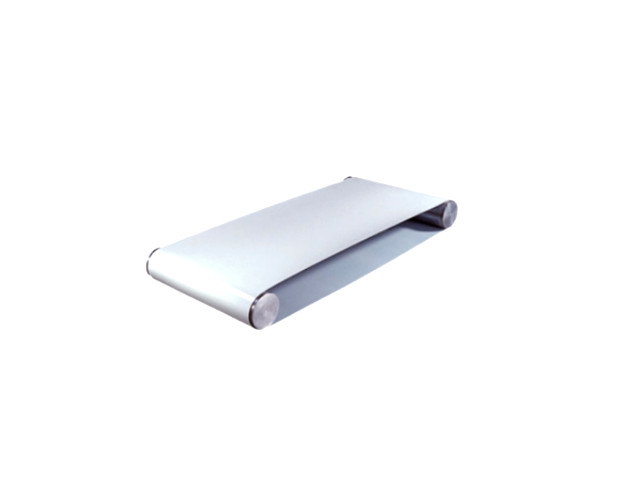
เราสามารถ คำนวณเส้นรอบวงสายพาน ด้วยสมการคณิตศาสตร์อย่างง่าย นั่นคือการหาเส้นรอบวง โดยเราจำเป็นต้องทราบ ความยาวสายพานลำเลียง และรัศมีของโรลเลอร์ r ที่เราใช้เสียก่อน

ตัวอย่าง

ความยาวสายพานลำเลียงขนาด 300mm มีรัศมีของโรลเลอร์ r = 15mm

หาเส้นรอบวงโรลเลอร์ โดยใช้  2 x pi x r
ซึ่งจะได้เส้นรอบวง 94.2mm และครึ่งของเส้นรอบวงคือ 47.1mm

หาความยาวเพลาถึงเพลา
จากการทราบ ความยาวสายพานลำเลียง ลบกับ รัศมีของโรลเลอร์ x 2

ความยาวเพลาถึงเพลา = 300mm – (15mm x 2)
ความยาวเพลาถึงเพลา = 270mm

จากนั้นหาเส้นรอบวงสายพานลำเลียง
โดยการรวมความยาวระยะต่างๆดังนี้

เส้นรอบวงสายพานลำเลียง = ความยาวเพลาถึงเพลา + ความยาวเพลาถึงเพลา + ความยาวครึ่งวงโรลเลอร์ + ความยาวครึ่งวงโรลเลอร์

270mm + 270mm +  47.1mm  + 47.1mm  = 634mm

เราอาจจะเผื่อค่าความหย่อนตัวของสายพานสักเล็กน้อยประมาณ 1.5 – 2.5% ก็ได้
จะได้ค่าเส้นรอบวงสายพานลำเลียงที่เผื่อหย่อนประมาณ 650mm  เป็นต้น

Posted on

ระบบ Push Rejector

ระบบ Push Rejector 

ใช้ระบบที่ใช้คัดแยกชิ้นงาน ในงานผลิต NG “No Good” หมายถึงชิ้นงานที่ไม่ดี ซึ่งอาจจะหมายถึงชิ้นงานที่ไม่เข้าเกณฑ์ หรือ สินค้าที่มีข้อบกพร่อง จึงต้องทำการคัดแยกชิ้นงานนั้นออกไป อุปกรณ์ที่ใช้คัดแยกหรือนำพาชิ้นงานนั้นออกไปจากการผลิต เราเรียกว่า Rejector, Pusher Type Rejector เป็น Rejector  ประเภทดันหรือผลัก ชิ้นงานที่ NG จะถูกถูกดันออกข้างต้วยตัว Rejector


Posted on

จัดหาอะไหล่บอร์ด

จัดหาอะไหล่บอร์ด แผงวงจรอิเล็กทรอนิกส์

  1. บอร์ดอินเวอร์เตอร์ควบคุมมอเตอร์โรงงานอุตสาหกรรม‎
  2. บอร์ดสวิตชิ่งพาวเวอร์ซัพพลาย
  3. บอร์ด CNC
Posted on

การเขียนโปรแกรมแบบลากและวาง Mixly Arduino

Mixly

การเขียนโปรแกรมแบบลากและวางสำหรับบอร์ด Microduino และ Arduino Mixly มาแนวทางเดียวกับ Blockly แพลตฟอร์ม Mixly พัฒนาขึ้นโดย Mixly Team @ Bejing Normal University.

Blocks

  • http://mixly.org/
  • http://wiki.sunfounder.cc/index.php?title=Get_started_with_Mixly
  • https://github.com/xbed/Mixly_Arduino
  • https://mixly-robotics.teachable.com/
Posted on

เซนเซอร์สี Color sensors TCS3472

Color sensors เซนเซอร์สี Light-to-Digital

การใช้งาน การตรวจสอบสีของผลิตภัณฑ์ ระบบอัตโนมัติอุตสาหกรรม Industrial automation

TCS3472 ประกอบด้วยอาร์เรย์ photodiode 3 × 4, ประกอบด้วยโฟโตไดโอดที่กรอง

  1. r สีแดง
  2. g สีเขียว
  3. b สีน้ำเงิน

การสื่อสาร  I²C  7-bit address 0x29 Compatible with 3.3V and 5V logic level